

Fixing the “The folder may have been deleted or moved” Error in Word, Excel and SharePoint
We recently came across a frustrating issue affecting Microsoft Word and Excel when browsing files stored in SharePoint Online. When navigating through folders using the built-in Office file picker, users were seeing the message:
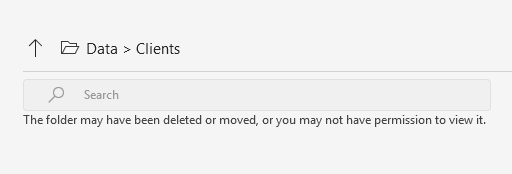
“The folder may have been deleted or moved, or you may not have permission to view it.”
In our case, the folder definitely existed, permissions were correct, and clicking the folder path opened the standard Windows file picker where everything displayed normally. This is a common Microsoft 365 issue we’re seeing with clients across Oxford, Oxfordshire, and Buckinghamshire.
The Cause
Despite what the error message suggests, this is not a SharePoint permissions problem. The issue is caused by a corrupted or out-of-sync Microsoft Office file cache. Office relies on its own cached metadata when browsing SharePoint and OneDrive locations, and when that cache breaks, folder contents may fail to display correctly.
The Fix
Clearing the local Office file cache resolves the issue in most cases:
- Close all Office applications (Word, Excel, Outlook, etc.).
- Make sure no Office processes are running in Task Manager.
- Delete the following folder:
%localappdata%\Microsoft\Office\16.0\OfficeFileCache - While it wasn’t required here, when troubleshooting similar Office and SharePoint issues it’s often also recommended to delete the following folder:
%localappdata%\Microsoft\Office\16.0\Wef - Reopen Word or Excel and sign in again if prompted.
After doing this, the SharePoint folders loaded correctly inside the Office file picker.
Need Help with Microsoft 365 or SharePoint?
At AGGIA IT Services, we help small businesses around Oxford, Oxfordshire, and Buckinghamshire resolve exactly these kinds of Microsoft 365 and SharePoint issues.
If you’re experiencing similar problems or want your Microsoft 365 setup reviewed, feel free to get in touch.