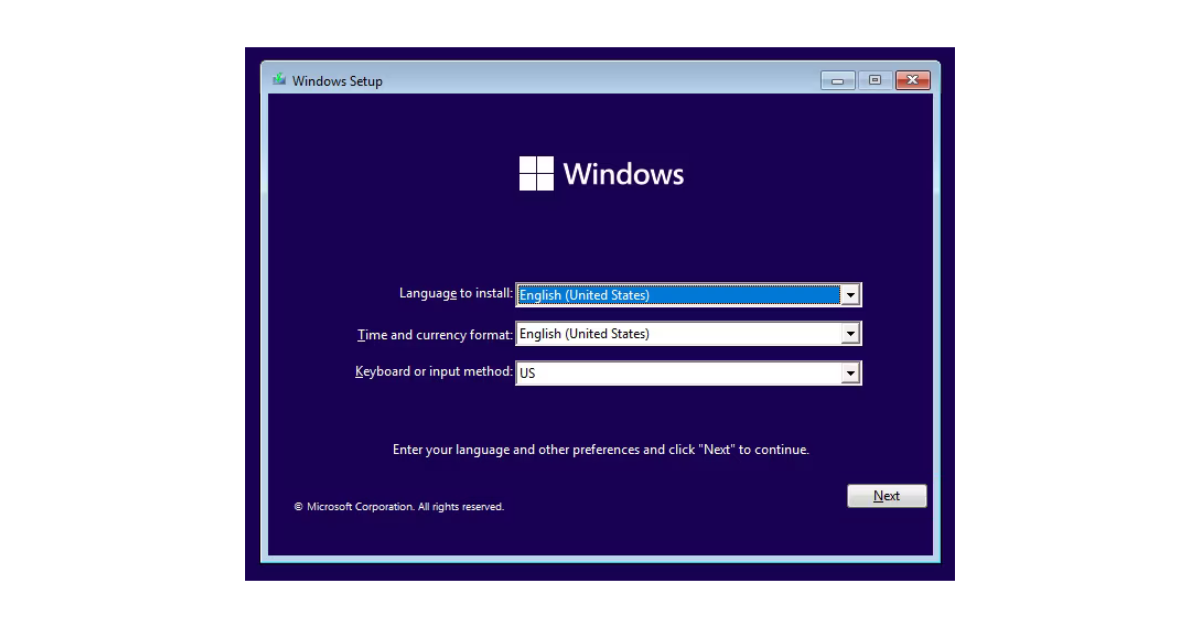
If you try to install Windows 11 from a bootable USB/DVD drive on a computer that doesn’t meet Windows 11 TPM 2.0, Secure Boot, or RAM requirements, you will be greeted by the following error message during the Windows Setup:
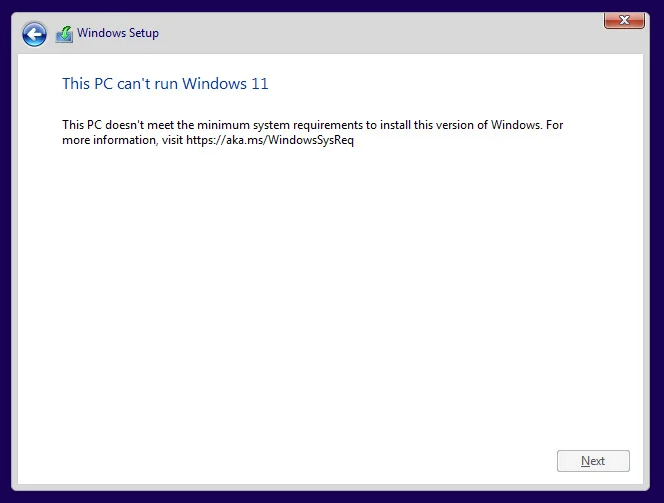
This PC doesn’t meet the minimum requirements to install this version of Windows. For more information, visit https://aka.ms/WindowsSysReq
Luckily, all these requirements are not technical limitations and can be easily bypassed.
- Press SHIFT + F10 on your keyboard which will open a Command Prompt.
- In the Command Prompt, type regedit and press Enter.
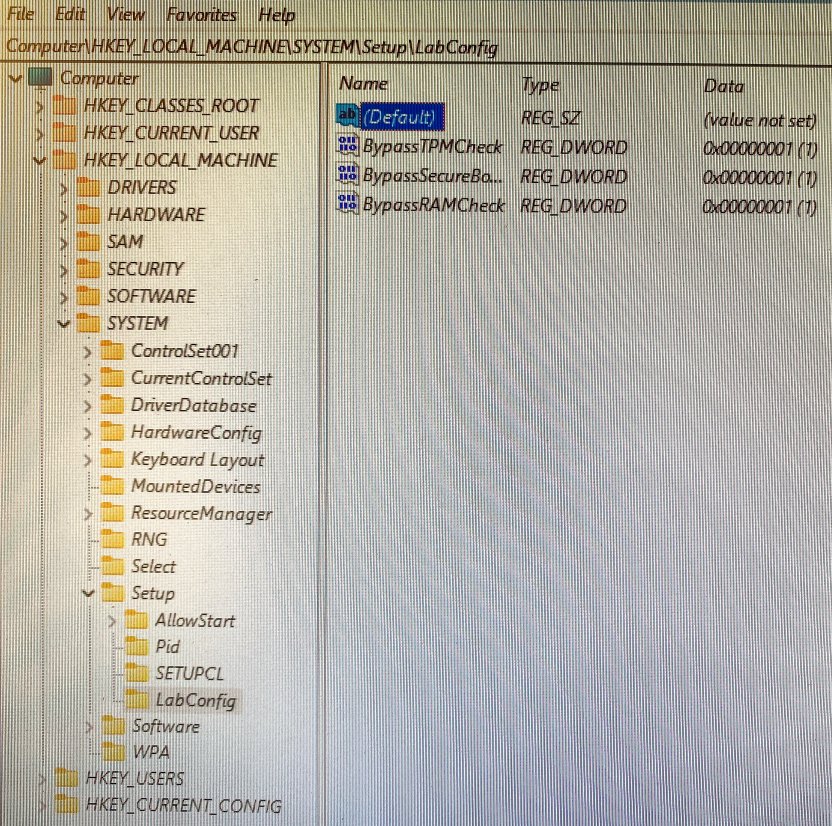
- In the Registry Editor, navigate to: HKEY_LOCAL_MACHINE\SYSTEM\Setup\LabConfig
Create LabConfig key, if it doesn’t exist. - Inside the LabConfig key create 3 following DWORD type entries with the value of 1.
- BypassTPMCheck
- BypassSecureBootCheck
- BypassRAMCheck
- Close the Registry Editor
- Go one step back in the Windows 11 Setup, then continue as normal and you should no longer see any compatibility-related error messages.
September 2024
Oxford, Oxfordshire