
I’ve encountered this issue a few times while working for customers in Oxfordshire. The Gmail account in Microsoft Outlook (classic) would stop working or start working intermittently. After removing the Gmail account from Outlook and trying to add it again, the following error pops up:
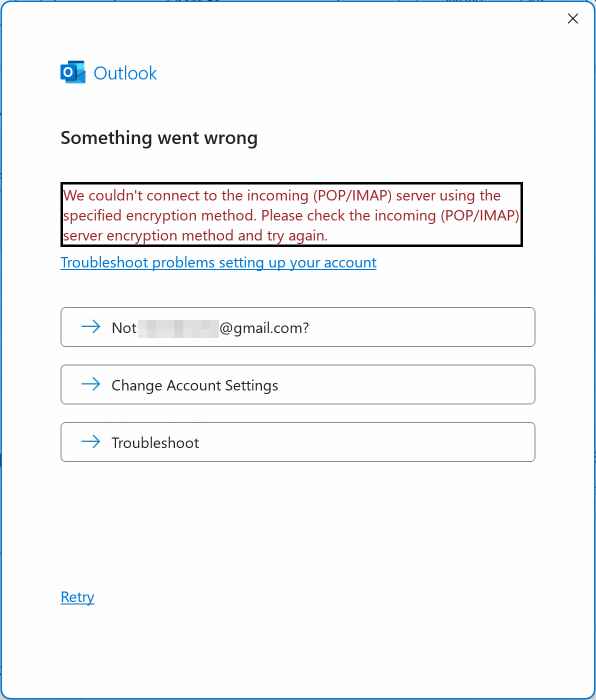
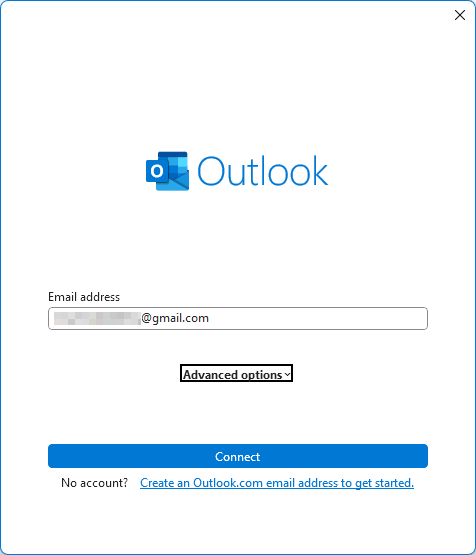
Outlook never prompts for the password, or displays the OAuth login window. After entering the email address and clicking Connect, Outlook “thinks” for about 15 seconds and then throws the above error.
None of the usual troubleshooting steps were helping:
- Delete all Gmail-related entries from Windows Credential Manager.
- Delete all Gmail-related entries from the Windows Registry.
- Try creating a new Outlook profile.
- Try creating a new user account.
The solution that worked in most cases was somewhat random:
- Switch from Classic Outlook to the New Outlook.
- Add the affected Gmail account to the New Outlook.
- Switch back to the Classic Outlook and try adding the same Gmail account again.
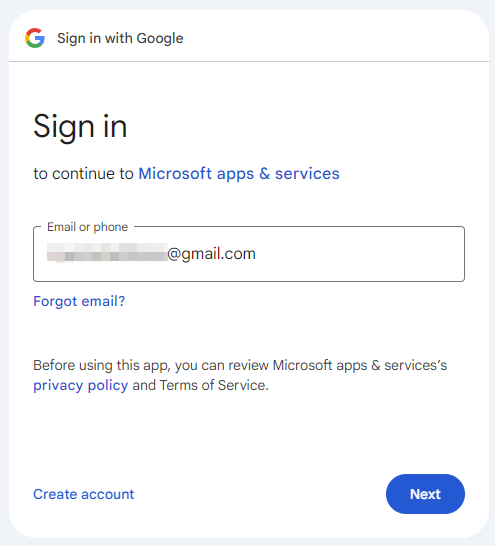
- The OAuth login prompt now opens and everything works as expected.
November 2024
Oxford, Oxfordshire