The short answer: contacts created in the iPhone’s built-in Contacts app sync to Microsoft 365 over Exchange ActiveSync, which does not carry the same “File As” preference your desktop Outlook uses. Exchange fills the field in with its own default of Last, First. No setting on the phone, on the desktop, or in the Microsoft 365 tenant will change this. Creating the contact in the Outlook mobile app instead avoids it entirely, and a short macro will tidy up the ones already saved the wrong way round.
This one came in from a client of ours in Oxfordshire, a services business with around a dozen staff on Microsoft 365. It is a small irritation rather than a crisis, but it is the kind of thing that quietly annoys somebody every single day, and it turned out to have a far less obvious cause than it first appeared.
The symptom
The office manager adds a new contact on her iPhone while out of the office. It looks perfectly normal on the phone. Back at her desk, the same contact appears in Outlook on Windows filed as Smith, John rather than John Smith, which throws it into the wrong place in an address list sorted by File As.
Contacts she creates at her desk in Outlook save correctly. It is only the ones created on the phone that come out back to front. Every contact saved that way has to be opened and corrected by hand.
Troubleshooting
There are three settings that look like they should govern this. None of them do, and understanding why saves a lot of wasted time.
The Outlook Address Book “Show names by” setting
In Outlook, under File, Account Settings, Account Settings, Address Books, there is an option to show names by “First Last” or “File As (Smith, John)”. This is the first thing most people find when they search for the problem.
It only controls how the legacy Address Book dialog lists entries, which is the window you get when you click the To: button on a new message. It has no effect at all on what is stored in the contact record, and no effect on the Contacts folder view.
The desktop “Default File As order” option
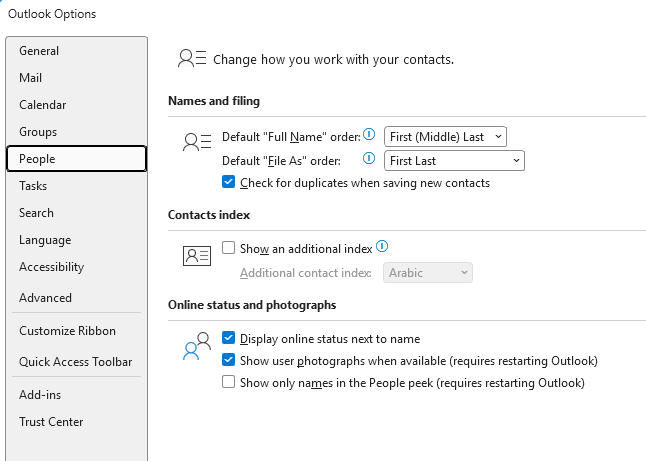
Under File, Options, People, there is a “Default ‘File As’ order” dropdown. This one genuinely does set the order, but only for contacts that Outlook creates. It is a local profile preference stored on that PC. It is not a mailbox setting, so nothing on the phone ever reads it, and changing it does not retrospectively correct anything that already exists.
The iPhone’s own display and sort order settings
On the iPhone, under Settings, Apps, Contacts, there are Sort Order and Display Order options. Setting both to “First, Last” is a reasonable thing to try. In our client’s case they were already set that way and the problem persisted. These settings govern how the phone draws its own contact list, not what it sends to the server.
What is actually going on
The clue that cracked it was a simple comparison test. We added one contact using the Outlook app on the iPhone, and another using Apple’s built-in Contacts app. The one from the Outlook app arrived on the desktop correctly as First Last. The one from the built-in Contacts app arrived as Last, First.
That points straight at the sync protocol rather than at any setting:
- The Outlook mobile app does not use ActiveSync. It talks to Microsoft 365 over Microsoft’s own sync service and writes the File As value itself, in the order Outlook expects.
- The built-in Contacts app uses Exchange ActiveSync, which is the protocol behind an Exchange account added in iOS Settings. The File As value that reaches the mailbox ends up as Last, First.
So the mailbox is fine, the tenant is fine, and the desktop is fine. The behaviour is determined entirely by which app on the phone created the contact.
How to fix it
Option 1: create contacts in the Outlook app on the phone
This is the practical answer for most people. It costs nothing, needs no configuration, and removes the problem completely for everything created from now on. It is a habit change rather than a technical fix, which is an easier sell to some users than others.
Option 2: correct the existing contacts with a macro
Whatever you do going forward, the contacts already saved the wrong way round will not correct themselves. For a handful, open each one and change the File As dropdown. For a few hundred, it is worth scripting.
The VBA macro below runs inside Outlook on the desktop and rewrites the File As field across a contacts folder.
The macro defaults to a preview that saves nothing, so you can read the full list of intended changes before committing. It also reads each contact back from the mailbox after saving, because a save can succeed without the value persisting, and you want that reported rather than silently counted as a success.
Option Explicit

' Fixes contacts filed as "Last, First" so they file as "First Last".
' Leave PREVIEW_ONLY as True for a dry run. Results go to the
' Immediate window (Ctrl+G).

Private Const PREVIEW_ONLY As Boolean = True

Public Sub FixFileAsOrder()

    Dim fld As Outlook.Folder, itms As Outlook.Items
    Dim con As Outlook.ContactItem
    Dim i As Long
    Dim fn As String, ln As String, cur As String, wanted As String
    Dim theID As String, theStore As String, landed As String
    Dim matched As Long, applied As Long

    Set fld = Application.Session.PickFolder
    If fld Is Nothing Then Exit Sub
    If fld.DefaultItemType <> olContactItem Then
        MsgBox "That is not a contacts folder.", vbExclamation
        Exit Sub
    End If

    theStore = fld.StoreID
    Set itms = fld.Items

    Debug.Print "Folder: " & fld.FolderPath
    Debug.Print IIf(PREVIEW_ONLY, "PREVIEW - nothing saved", "APPLYING")

    ' Loop backwards: saving an item can reorder the collection
    For i = itms.Count To 1 Step -1

        If TypeName(itms.Item(i)) = "ContactItem" Then

            Set con = itms.Item(i)
            fn = Trim$(con.FirstName)
            ln = Trim$(con.LastName)
            cur = con.FileAs
            wanted = ""

            ' only the exact pattern a mobile sync produces
            If Len(fn) > 0 And Len(ln) > 0 Then
                If Trim$(cur) = ln & ", " & fn Then wanted = fn & " " & ln
            End If

            If Len(wanted) > 0 Then

                matched = matched + 1
                Debug.Print "[" & cur & "]  ->  [" & wanted & "]"

                If Not PREVIEW_ONLY Then
                    theID = con.EntryID
                    con.FileAs = wanted
                    con.Save

                    ' confirm it actually persisted
                    landed = Application.Session.GetItemFromID(theID, theStore).FileAs
                    If landed = wanted Then
                        applied = applied + 1
                    Else
                        Debug.Print "     DID NOT PERSIST, now: [" & landed & "]"
                    End If
                End If

            End If

            Set con = Nothing
        End If
    Next i

    Debug.Print "Matched: " & matched
    If Not PREVIEW_ONLY Then Debug.Print "Changed: " & applied

End Sub
To use it, press Alt+F11 in Outlook to open the VBA editor, insert a new module and paste the code in, then press F5 to run. It will ask you to pick the contacts folder, so it works on secondary mailboxes and shared contact folders too. Read the Immediate window output, and when you are satisfied with the list, change PREVIEW_ONLY to False and run it again.
Export the Contacts folder to CSV before the live run, via File, Open & Export, Import/Export, Export to a file. File As is included in a CSV export, which gives you a rollback position.
One thing to expect. Unsigned macros are blocked by default, so nothing will run until you set File, Options, Trust Center, Trust Center Settings, Macro Settings to notifications for all macros. You will then get a security prompt to approve, which in our experience appears when you first open the Macros dialog in a session rather than at every Outlook startup. For a tool you run occasionally that is a reasonable place to sit, and it is a good deal safer than enabling all macros outright. If you would rather have no prompt at all, self-signing the project with SELFCERT and trusting your own certificate once is the tidier long term answer.
What we recommended to the client
We moved new contact creation to the Outlook mobile app, ran the cleanup macro once against the existing mailbox, and left it there.
The wider point is one we run into a lot with Microsoft 365. The setting that looks like it should control something often does not, and three plausible-looking options can all be dead ends before the real cause turns out to be which app a record was created in. Knowing where to stop looking is usually worth more than knowing where to start.
Frequently asked questions
Why do my iPhone contacts show as last name first in Outlook?
Because they were created in the iPhone’s built-in Contacts app, which syncs to Microsoft 365 over Exchange ActiveSync. The File As field ends up set to “Last, First”. Contacts created in the Outlook mobile app do not have this problem.
Can I change the File As order for my whole Microsoft 365 tenant?
No. There is no tenant-level or mailbox-level setting for File As order. The only Outlook option, “Default ‘File As’ order”, is a local preference on an individual PC and applies only to contacts that copy of Outlook creates.
Will changing the iPhone’s Display Order setting fix it?
No. Settings, Apps, Contacts, Display Order controls how the phone displays its own contact list. It does not change the value sent to Exchange.
Is there a way to fix existing contacts in bulk?
Yes. A VBA macro run inside Outlook on the desktop can rewrite the File As field across a Contacts folder. Restrict it to records that exactly match the “Last, First” pattern so that deliberately customised entries are not overwritten, and take a CSV export first.
Does this affect Android phones too?
Yes. It is not specific to Apple. Any native mail app syncing over Exchange ActiveSync can produce the same result. Using the Outlook mobile app avoids it on both platforms.
Need a hand with Microsoft 365?
AGGIA IT provides IT support to small businesses in Bicester, Oxford and across Oxfordshire. We look after Microsoft 365, Windows, networks and the day to day things that quietly waste your team’s time, like this one. You deal with the person doing the work rather than a helpdesk queue, and there are no long term contracts.
Get in touch if something on your systems is not behaving and you would like a straight answer about it.