

A proprietor of a small real estate company in Oxford recently contacted me with a minor IT question. They wanted a quick way to see how many emails are selected in Outlook.
It’s very easy to see the total and unread email count in Microsoft Outlook. Simply go to any folder and glance at the bottom status bar:

But what to do if you want to see how many emails you have in a selection? Outlook doesn’t have any built-in way to display the count of selected emails, however, there is a quick workaround that allows you to do exactly that:
- Select all the emails you wish to count.
- Press “Enter” on your keyboard.
- A warning will pop up. Note the number of selected emails and click No.
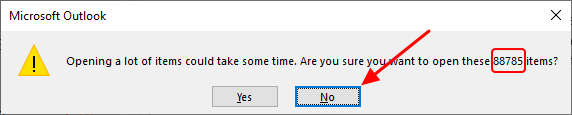
Note: Make absolutely sure that you click No. If you click Yes, Outlook will try to open all selected emails, which most likely will cause MS Outlook to freeze and eventually crash.
November 2023
Oxford, Oxfordshire
Microsoft Office Outlook 365






3 responses
Perfect!!!
from how many E-mails being selected does this workaround work? I would like to avoid even 10 or 20 e-mails to be opened after pressing Enter.
Just tested it, it shows a pop-up if more than 4 emails are selected.