

If you have recently set up Conditional Access in Microsoft 365, you may have run into a frustrating problem: you can no longer get into the Microsoft 365 admin centre with your separate global admin account. The browser keeps signing you in automatically with your normal user account, and an InPrivate or Incognito window is blocked by your “require compliant device” policy. This article explains why it happens and how to fix it properly, without weakening your security.
The problem
Following good practice, many businesses use two accounts for each IT administrator:
- A normal everyday account (for example
) used for email, Teams and files - A separate admin account (for example
) with the Global Administrator role, used only for admin tasks
Combined with a typical Microsoft 365 Business Premium Conditional Access baseline (require MFA, block legacy authentication, require a compliant device on Windows and macOS), this creates a catch:
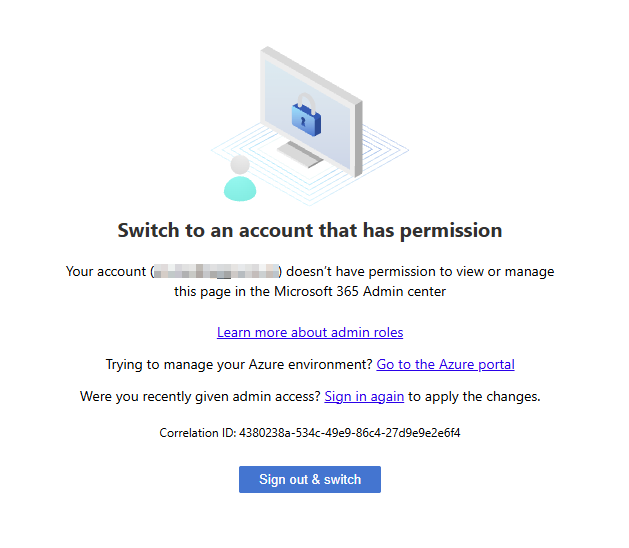
- On an Entra ID joined Windows PC, Microsoft Edge, Google Chrome, and Firefox use single sign-on (SSO) and sign you straight in as the Windows user, i.e. your normal account. You get the message “Switch to an account that has permission” in the Microsoft 365 admin centre. If you try to sign out, you’re automatically signed back in with the same account.
- An InPrivate or Incognito window lets you type the admin account, but it does not pass the device identity to Entra ID, so the compliant device Conditional Access policy blocks the sign-in.
- Even a separate Edge profile signed in with the admin account can still end up using the normal account when you open the admin portal.
Why it happens
When a Windows device is joined to Microsoft Entra ID, the signed-in Windows user receives a Primary Refresh Token (PRT). Edge uses this token to sign you in to Microsoft sites automatically, and to prove to Conditional Access that the request comes from a managed, compliant device.
The PRT belongs to the Windows user, not to your admin account. Unless Edge is told to use the profile’s own account, the Microsoft sign-in page picks the Windows account by default. Private browsing windows skip SSO completely, which is why they fail the device compliance check.
The tempting workaround (and why to avoid it)
The obvious fix is to exclude the admin account from the compliant device policy and replace it with a rule that only allows sign-in from your office IP address. It works, but it is a step backwards:
- It is a weaker control. A trusted IP only proves you are on a particular network. A compliant device check proves you are on a managed, encrypted and up-to-date machine.
- It is impractical. Home broadband IP addresses can change, and you lose admin access when working on site or on mobile data.
- It goes against best practice. Admin accounts should have stronger protection than normal users, not weaker.
The better approach is to keep the policy in place and make the browser present the right account.
The fix: a dedicated Edge profile set to use its own work account
- Create a separate Edge profile for admin work. In Microsoft Edge, click your profile picture, choose Set up a new profile (or Add profile), and sign in with your admin account. If Edge asks whether to add the account to Windows and other apps, choose This app only, so the admin account stays out of Outlook, Teams and other apps.
- Open the settings from the admin profile. Edge profile settings apply per profile, so make sure the admin account is shown in the profile picture before changing anything. Go to Settings > Profiles > Profile preferences.
- Turn on “Automatically sign in to sites with your current work or school account”. This is the key setting. With it switched off, Edge lets the Microsoft sign-in page choose from all the work accounts on the device, and it defaults to the Windows account. With it on, Edge signs in to Microsoft sites with the account of the current profile.
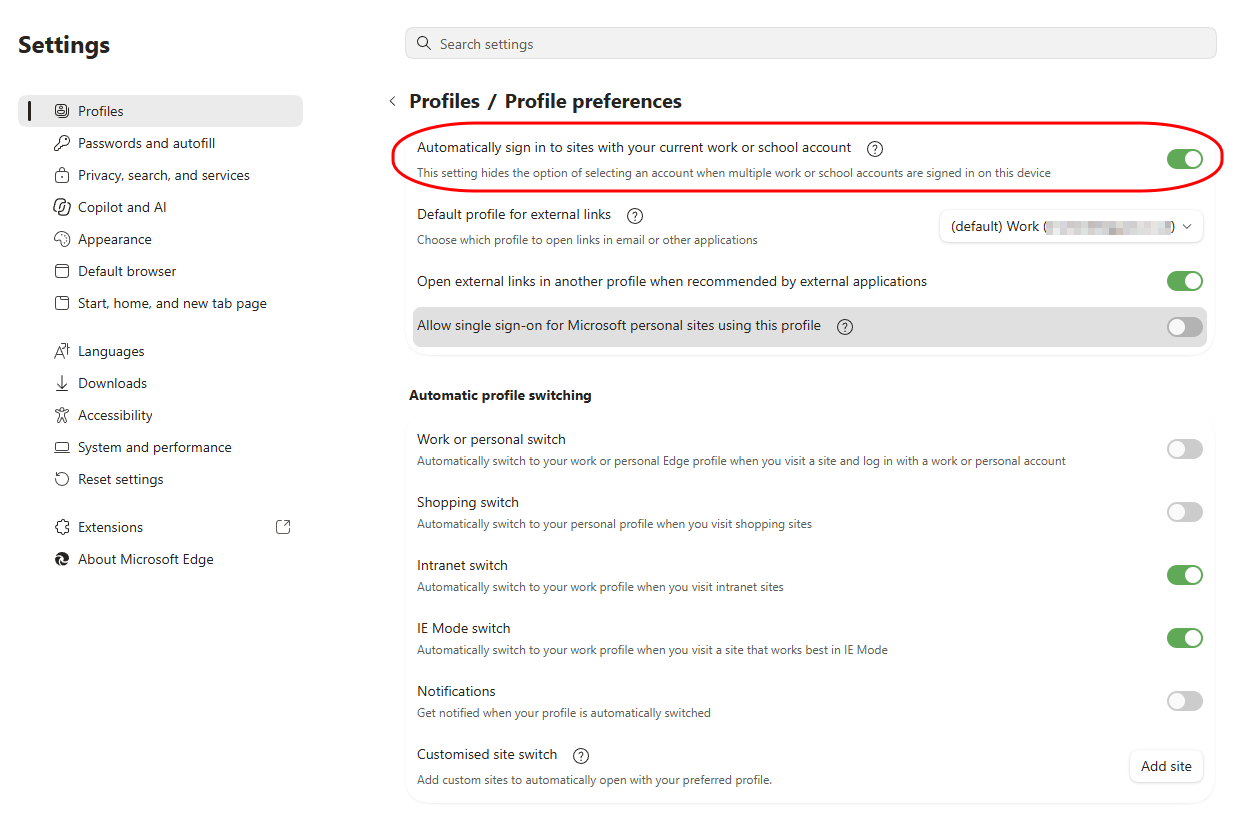
- Leave “Work or personal switch” turned off under Automatic profile switching, so Edge does not move admin portal tabs back to your everyday profile.
- Clear old sign-in cookies. In the admin profile, go to Settings > Privacy, search, and services > Clear browsing data and clear cookies and other site data. This only affects the admin profile, not your everyday one.
- Restart the profile. Close every window of the admin profile, open it again and browse to admin.microsoft.com.
Do not forget a break-glass account
While you are reviewing Conditional Access, make sure you also have an emergency access (break-glass) account. This is a cloud-only Global Administrator on your onmicrosoft.com domain, excluded from all Conditional Access policies, with a long random password stored securely offline and sign-in alerts configured. It is the right account to exclude from your policies, not your everyday admin account.
Summary
- Conditional Access with a compliant device requirement can lock out separate admin accounts because Edge SSO uses the Windows user’s account.
- Excluding the admin account and relying on an IP restriction weakens your security.
- Use a dedicated Edge profile for the admin account and turn on “Automatically sign in to sites with your current work or school account” in that profile.
- Clear old Microsoft sign-in cookies and restart the profile.
Need help with Conditional Access or Microsoft 365 security?
AGGIA IT provides IT support for small businesses in Bicester, Oxford and across Oxfordshire. We set up Microsoft 365 Business Premium security, including Conditional Access, Intune device management and MFA, in a way that protects your business without getting in the way of your team. You deal directly with an experienced engineer, not a helpdesk, and there are no long-term contracts.
Get in touch to discuss your Microsoft 365 setup.