
This issue we had to deal recently for a client on Windows Server 2016 print server. One of the print jobs sent from a client Windows 10 PC got stuck in a print queue on the server. Deleting / cancelling the failed and stuck print job was unsuccessful, even after restarting the Print Spooler service on the server.
This is how I resolved the issue without having to reboot the server:
- Stop the Print Spooler service.
- Navigate to: C:\Windows\system32\spool\PRINTERS.
- Delete all files from there.
- One file was failing to go away with an error that it was locked by printfilterpipelinesvc.exe process.
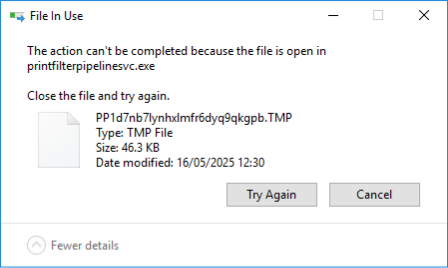
- Found the printfilterpipelinesvc.exe process in Task Manager and “killed” it.
- Try deleting the file again. Now it’s gone.
- Start the Print Spooler service.
- Everything is back to normal.
May 2025
Oxford, Oxfordshire