
We recently helped a customer in Oxford with a Windows 11 VPN issue that looked like a username or password problem, but wasn’t.
The customer had an L2TP/IPsec with Pre-Shared Key VPN configured on a laptop. The VPN worked correctly under the original Windows user account. However, after creating a new Windows user account on the same laptop and recreating the VPN connection, the VPN would no longer connect.
The confusing part was that all the visible VPN settings appeared to be exactly the same.
The Error Message
When trying to connect, Windows displayed the following message:
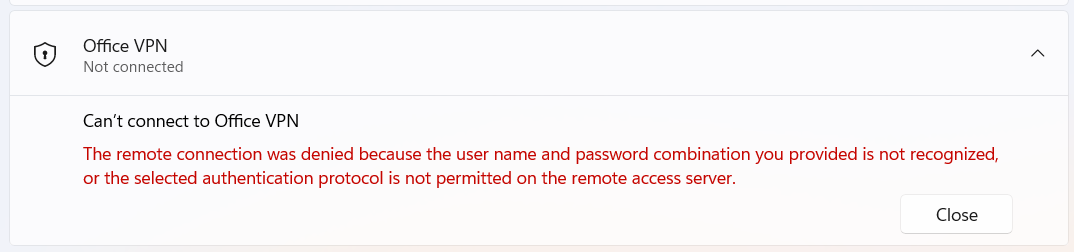
Can’t connect to Office VPN
The remote connection was denied because the user name and password combination you provided is not recognized, or the selected authentication protocol is not permitted on the remote access server.
This makes it look like the password is wrong, but in this case, the username and password were correct.
What We Found
After comparing the VPN adapter settings in the Control Panel between the working and non-working Windows accounts, the issue was found in the new adapter settings.
In the VPN adapter properties, under:
Security → Authentication
None of the authentication methods underneath were ticked.
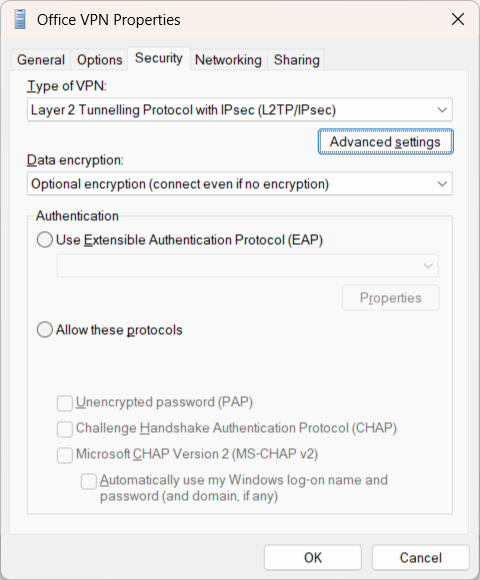
This is unusual because Windows does not normally allow it to be saved manually in that state. At least one authentication method should normally be enabled.
The missing option was:
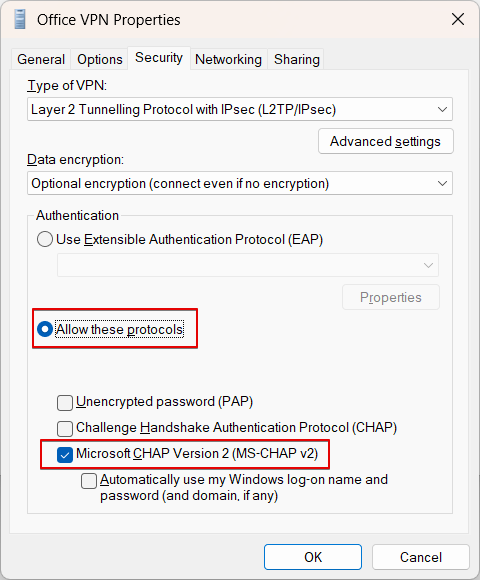
- Microsoft CHAP Version 2 (MS-CHAP v2)
Once MS-CHAP v2 was ticked, the VPN connected immediately.
Why This Was Misleading
The error message suggested either:
- an incorrect username or password, or
- an authentication method not allowed by the VPN server
In this case, the second part of the message was the important clue.
The VPN server required MS-CHAP v2, but the new Windows user profile had created or stored the VPN configuration in an incomplete state.
Is This a Windows Bug?
It certainly looks like a Windows VPN profile bug or corruption, because the settings were left in a state that should not normally be possible to save through the user interface.
We’ve also never seen this issue before.
How to Fix It
If you see this error with an L2TP/IPsec VPN on Windows 11, check the adapter settings:
- Press Windows + R
- Type
ncpa.cpland press Enter - Right-click the VPN connection and select Properties
- Open the Security tab
- Under Authentication, select Allow these protocols
- Tick Microsoft CHAP Version 2 (MS-CHAP v2)
- Save the settings and try connecting again
A Useful Check for Businesses in Oxfordshire and Buckinghamshire
We support businesses across Oxford, Oxfordshire and Buckinghamshire with Microsoft 365, VPN access, networking and general IT support.
If your VPN suddenly stops working after creating a new Windows user account, setting up a replacement laptop, or reconfiguring a VPN connection, don’t assume the password is wrong. It may simply be that Windows has not enabled the correct authentication protocol.
Need Help?
If your business is having problems with VPN access, Windows 11, Microsoft 365, or general IT support in Oxford, Oxfordshire or Bucks, feel free to get in touch.