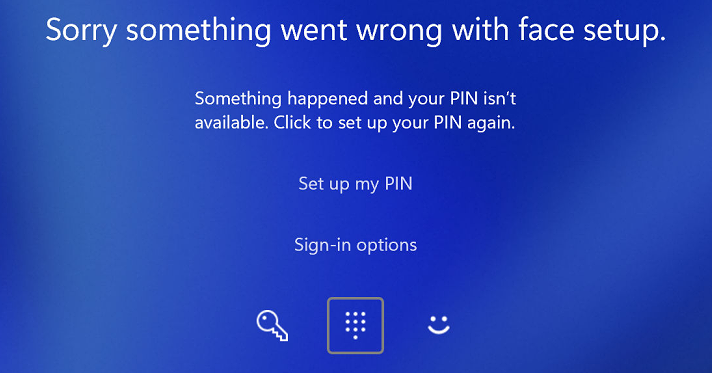
If you’ve switched on your Windows 11 PC and been greeted with “Sorry, something went wrong with face setup”, you’re not alone. This is one of the new issues our IT support team had to recently resolve for a few business customers in Oxford and Oxfordshire. The good news? It’s fixable, and this guide walks you through exactly what to do.
What Causes Windows Hello to Stop Working?
Windows Hello (Microsoft’s biometric login system covering PIN, facial recognition, and fingerprint) stores its credential data in a system folder called NGC. This folder can become corrupted after:
- A Windows Update (especially partial or failed updates)
- BIOS and Firmware updates
- A change to your Microsoft account password
- An unexpected system shutdown or crash
When this happens, Windows Hello falls over, and sometimes the on-screen recovery options (like “Set up my PIN“) don’t even respond when clicked. Windows password option still works, but re-enrolling to Face or Fingerprint login doesn’t work even in Windows Settings.
Step 1: Get Back Into Windows
If the “Set up my PIN” button does nothing, don’t panic. On the login screen, click Sign-in options and look for the key (password) icon. Use your Microsoft account or local account password to get in.
Step 2: Clear the Corrupted NGC Folder
Once you’re logged in, open Command Prompt as Administrator (right-click the Start button → Terminal (Admin)) and run these three commands one at a time:
takeown /f C:\Windows\ServiceProfiles\LocalService\AppData\Local\Microsoft\NGC /r /d y

icacls C:\Windows\ServiceProfiles\LocalService\AppData\Local\Microsoft\NGC /grant administrators:F /t

rd /s /q "C:\Windows\ServiceProfiles\LocalService\AppData\Local\Microsoft\NGC"
These commands take ownership of the NGC folder, grant admin access, then delete it so Windows can rebuild it cleanly.
Restart your PC after running these commands.
Step 3: Re-enrol Your Windows Hello Sign-in Methods
After restarting, log in with your password again, then head to Settings → Accounts → Sign-in options and re-enrol in this order:
- PIN — set this up first, as Face and Fingerprint depend on it
- Facial recognition — follow the on-screen prompts
- Fingerprint — scan your finger as prompted
Need Help? We’re Your Local IT Support Team in Oxford & Oxfordshire
If you’re not comfortable running command-line fixes, or if Windows Hello is still misbehaving after following these steps, AGGIA IT Support is here to help. We provide hands-on IT support across Oxford, Oxfordshire, Buckinghamshire and the surrounding area — for home users and businesses alike.
👉 Get in touch with us today, and we’ll have your PC running smoothly again in no time.