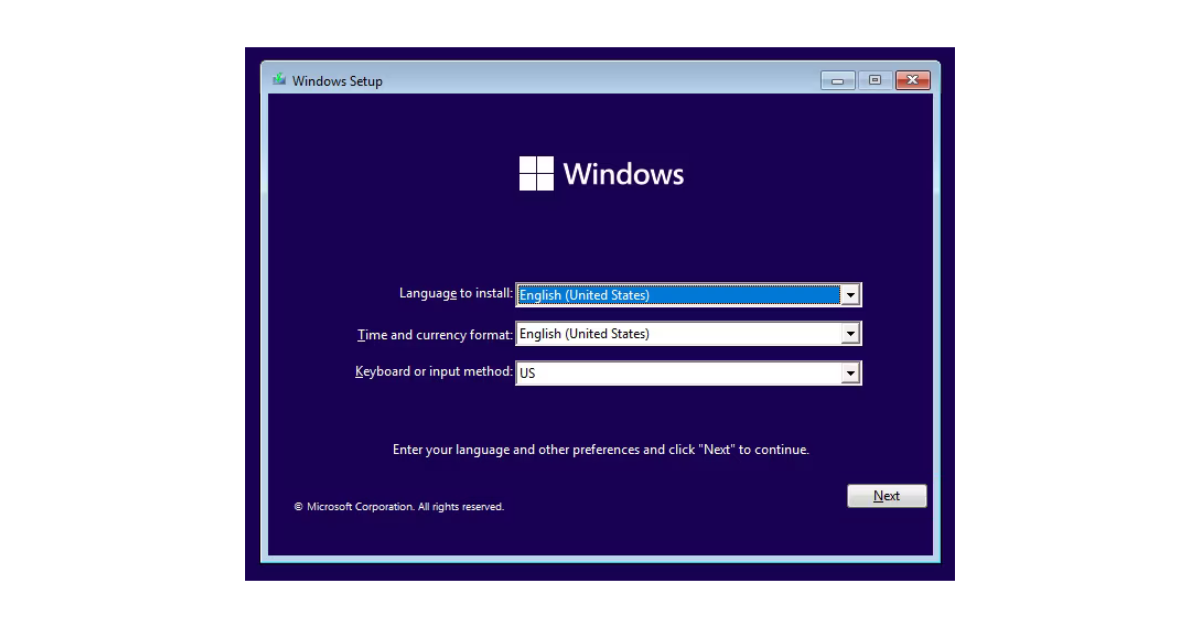
Microsoft is slowly but surely removing all options to set up a Windows 10 computer without an online Microsoft account. Until recently, you could create a local offline account if you didn’t have (or pretended to not have) an Internet connection. This has now changed and unplugging your network cable will no longer work. Windows 11 will simply not allow you to continue with the setup until you connect to the Internet
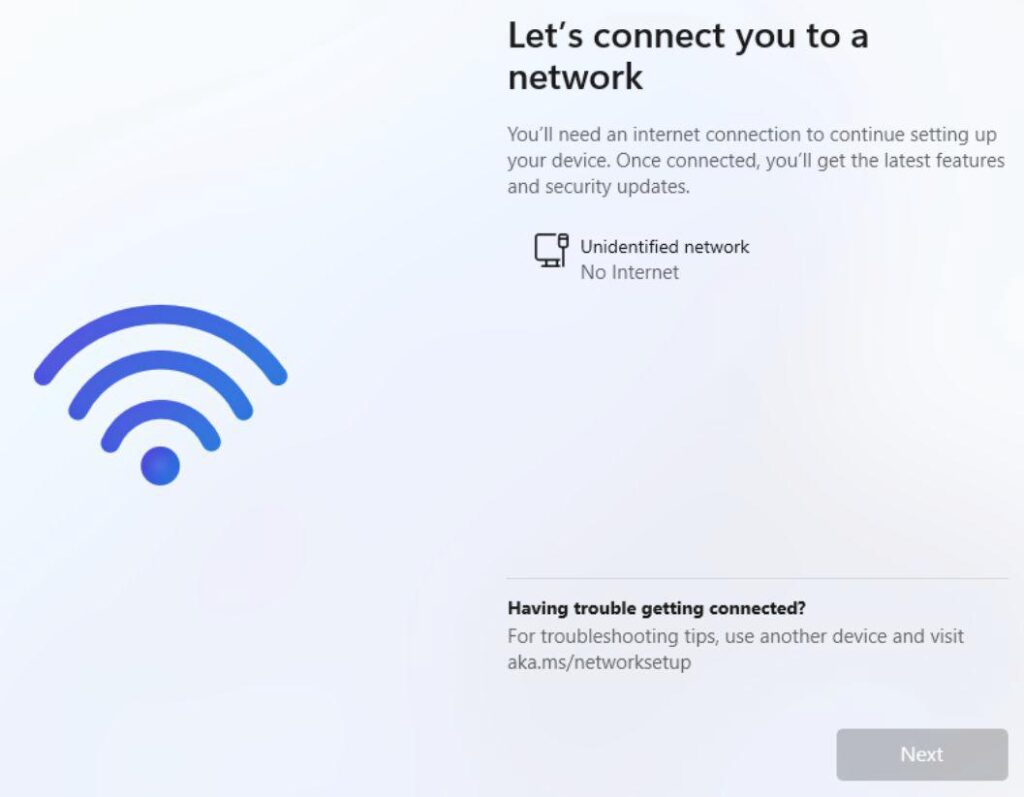
I recently had to set up a couple of new Windows 11 PCs for a small business in Oxford and had to set them up with local accounts. One option is to create a temporary junk Microsoft account, log in with it once, create a local account in Windows Settings and finally delete the Microsoft account login.
However, I prefer the below solution, it’s both quicker and cleaner:
- On the above “Let’s connect you to network” screen, press SHIFT + F10 keys.
- This will open the command prompt where you type: oobe\bypassnro and press Enter.
- The computer will reboot and when it gets to the same “Let’s connect you to network” screen”, you will see a little “I don’t have internet” link at the bottom.
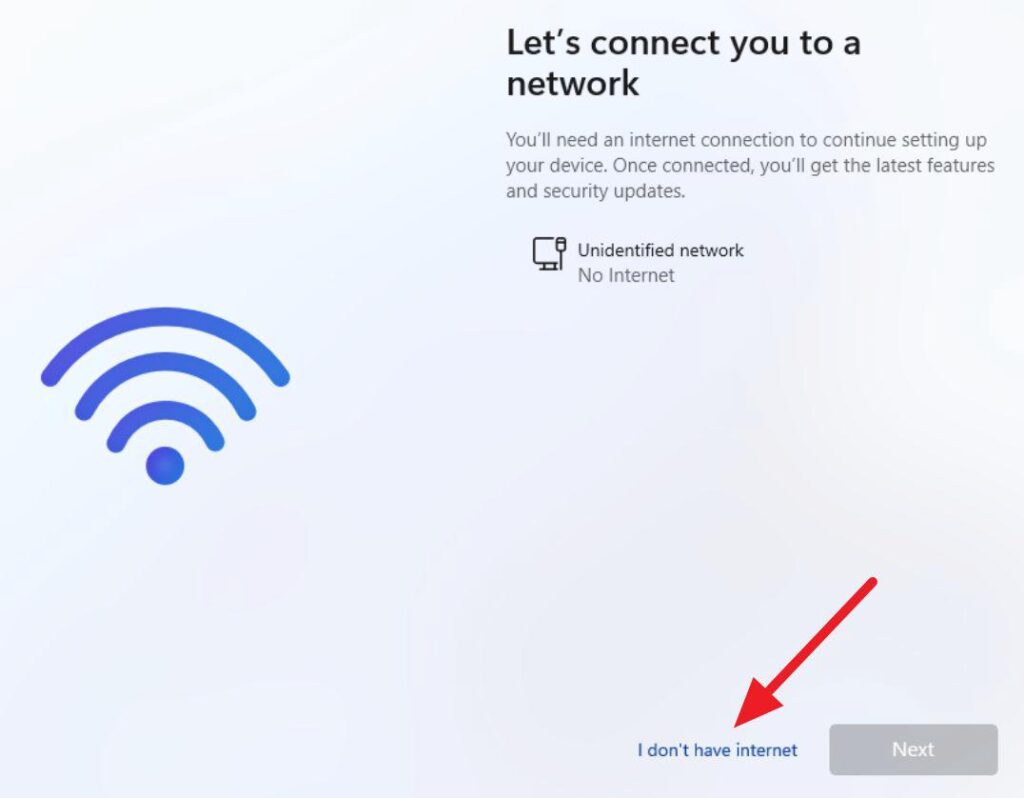
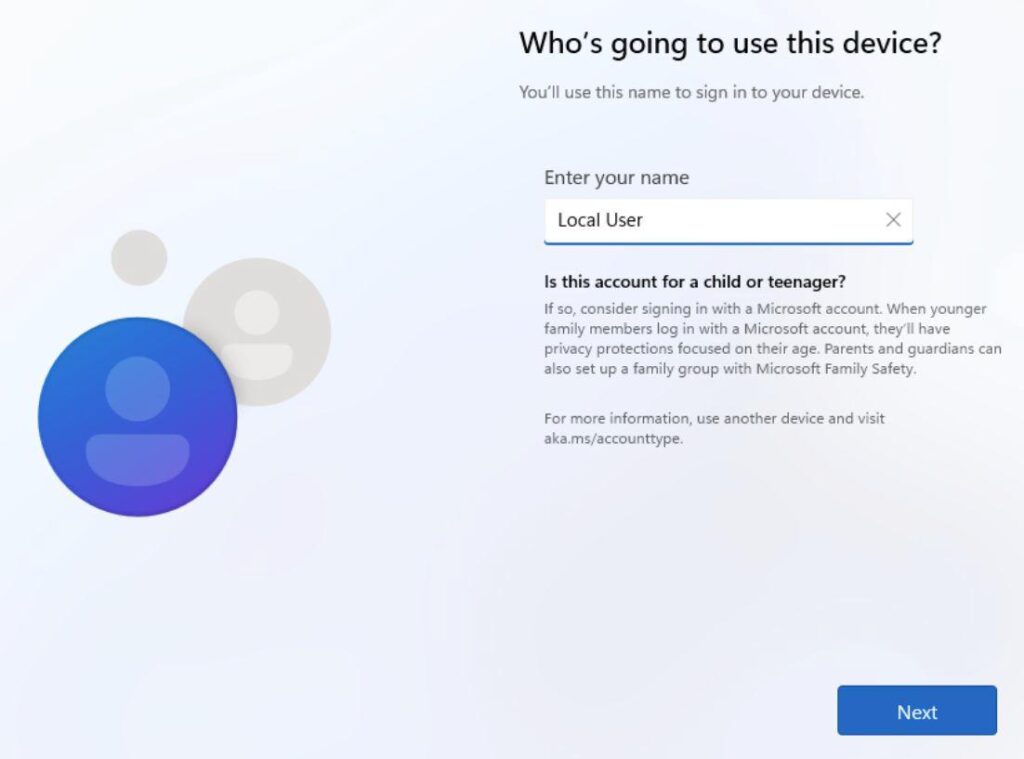
- Click “I don’t have internet” and you will be allowed to create a local user account.
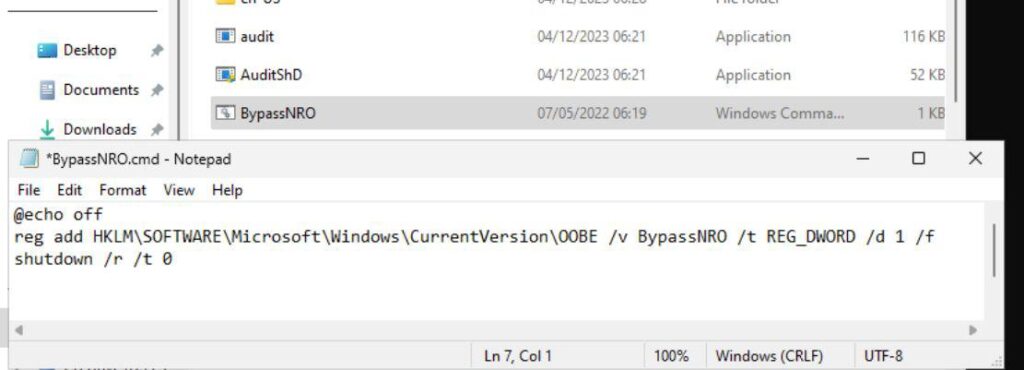
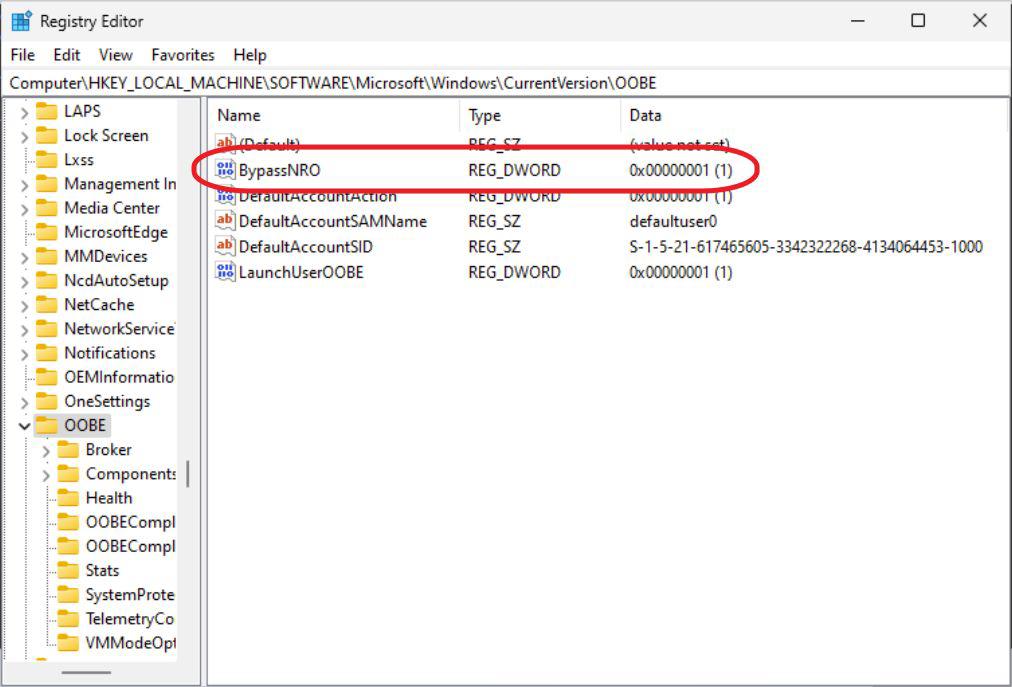
If you are interested in how all this works in the back end, the oobe\bypassnro executes BypassNRO.cmd batch file. The file contains only two commands. The first one makes a small registry change, second reboots the PC.
September 2024
Oxford, Oxfordshire