
A frustrating Microsoft Word error that has caught out some businesses we work with across Oxford, Oxfordshire and Buckinghamshire. Here’s what’s really going on, and how to fix it without losing your sharing links.
The Error That Makes No Sense
You’ve been working on an important document for months. You go to save it – and suddenly Microsoft Word tells you:
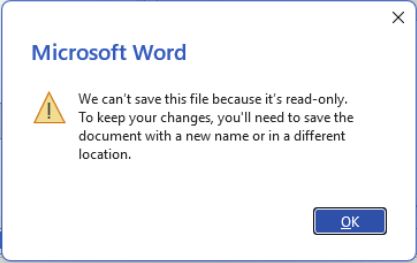
“We can’t save this file because it’s read-only. To keep your changes, you’ll need to save the document with a new name or in a different location.”
You check the file permissions. You check SharePoint. Everything looks fine. The document isn’t read-only. So why is Microsoft Word saying it is?
This is a genuinely confusing error, and it’s one that our IT support team in Oxfordshire encountered quite a few times recently. The good news: once you know the real cause, the fix is straightforward.
The Real Cause: Saving a Word Document as PDF Over an Existing File in SharePoint or Teams
Here’s the specific scenario that triggers this bug:
- You have a document stored in a Microsoft Teams channel or a SharePoint document library.
- You open the document in the Word Desktop App.
- You go to File > Save As > PDF and attempt to save the PDF into the same or different Teams or SharePoint folder where a PDF with that name already exists.
- Word throws the “read-only” error – even though the file and folder permissions are perfectly normal.
The root issue is a file lock conflict. When a PDF already exists in SharePoint or Teams under that filename, Microsoft 365 places a temporary lock on it, particularly if it has been opened recently, shared via a link, or cached by the Office sync client. Word interprets this lock as “read-only” and refuses to overwrite the file.
This is a known quirk of how the Office cache and SharePoint file locking mechanism interact. It’s not a permissions problem. It’s not a corruption issue. It’s a conflict between Word’s “Save As PDF” function and SharePoint’s file management layer.
The Obvious Fix – And Why It Can Create a New Problem
The most immediate workaround most people discover is this:
- Delete the existing PDF from the SharePoint or Teams folder.
- Then save the new version as a fresh file.
This works, but it can potentially create a secondary problem for many businesses, particularly those using Teams or SharePoint for collaboration and document sharing.
It breaks all existing sharing links.
When you delete a file in SharePoint and replace it with a new one, even with the exact same filename, SharePoint treats it as a brand new file with a new unique identifier. Any links that were previously shared with colleagues or clients (via email, Teams messages, or embedded in other documents) will now return a “File not found“ error.
For businesses in Oxford, Oxfordshire, and Buckinghamshire that rely heavily on SharePoint for client-facing document distribution or internal team collaboration, this can cause real disruption. Imagine a proposal PDF shared with a client breaking the day before a meeting, or a HR policy document link failing during onboarding.
The Better Fix: How to Overwrite the PDF Without Deleting It
The goal is to replace the file contents without deleting the file record in SharePoint – this preserves the unique file ID and keeps all sharing links intact.
Here are the most reliable methods:
Option 1: Use the SharePoint or Teams Upload to Overwrite
- Save the PDF locally to your desktop first (File > Save As > PDF, save to your computer).
- Open the Teams channel or SharePoint folder in your browser.
- Drag and drop (or use the Upload button) to upload the new PDF over the existing one.
- SharePoint will prompt you: “A file with this name already exists. Do you want to replace it?” — click Replace.
When you replace via upload, SharePoint updates the file’s contents while preserving its unique file ID and all existing sharing links.
Option 2: Restart MS Word and Try Again
Sometimes the file lock is caused by the Office document cache holding onto a stale reference. Clearing this can resolve the error:
- Close Microsoft Word completely.
- Reopen Word and try saving as PDF again.
- If it doesn’t work, you can try closing all MS Office apps or even restarting your PC.
Option 3: Use the “Publish as PDF” Option in Word
- Instead of File > Save As, try File > Export > Create PDF/XPS Document.
- Navigate to the SharePoint-synced folder location on your machine (via OneDrive sync).
- Save over the existing file.
This uses a slightly different save pathway that sometimes bypasses the lock conflict.
Why Does This Happen More in Teams and SharePoint Than Elsewhere?
Local files and network drives don’t typically exhibit this behaviour because they use simpler file-locking mechanisms. SharePoint and Teams introduce additional layers:
- Co-authoring locks – SharePoint tracks who has a file open to enable real-time collaboration.
- Office Online cache – Files opened via a browser or Teams are cached in the Office service layer.
- Sync client (OneDrive) – The OneDrive desktop client maintains its own local cache of SharePoint files, which can hold locks independently of the web interface.
When you try to overwrite a PDF that has been recently touched by any of these layers, Word’s “Save As PDF” process hits the lock and reports it as a read-only error – even though no user has set any read-only permissions.
IT Support in Oxford, Oxfordshire & Buckinghamshire
Issues like this are a perfect example of why having experienced, local IT support matters. The error message is genuinely misleading – “read-only” implies a permissions problem, when in reality it’s a caching and file-locking quirk specific to Microsoft 365’s SharePoint and Teams integration.
Our team supports businesses across Oxford, Oxfordshire, and Buckinghamshire with exactly these kinds of day-to-day Microsoft 365 challenges — from SharePoint document library setup and Teams configuration, to troubleshooting the unexpected gremlins that crop up in busy working environments.
If your team is running into persistent issues with SharePoint, OneDrive, Teams, or any other Microsoft 365 applications, get in touch with us today. Sometimes the fix is simple once you know where to look – and we always know where to look!