The Problem
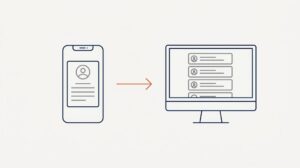
A client based in Oxfordshire was running an older version of a line-of-business desktop application across several workstations in an Active Directory domain. The software had been updated to a new release, and the update needed to be rolled out to all machines without visiting each one individually. This is a common scenario we deal with across businesses in Oxford, Oxfordshire, and Buckinghamshire, where keeping software consistent across a domain saves significant time compared to manual updates.
The installer was a standard Windows .exe setup file. This is slightly more involved than deploying a .msi package, which Group Policy handles natively, but still very achievable with a startup script.
Step 1: Find the Silent Install Switch
Before deploying anything, you need to know how to run the installer silently (without any interactive prompts appearing on the user’s screen). Silent install switches vary depending on which framework the installer was built with. There is no universal switch that works for all .exe files.
The quickest way to identify the installer type is to open the file in 7-Zip and look at its contents. Common frameworks and their switches are:
- NSIS —
/S(capital S required) - Inno Setup —
/VERYSILENT /SUPPRESSMSGBOXES /NORESTART /SP- - Electron / Squirrel —
--silent - InstallShield —
/s /v"/qn"
In this case, the installer was built with NSIS. Testing on a single machine confirmed that the following ran the installer completely silently:
AppSetup.exe /SAlways test the silent switch manually before building any automation around it.
Step 2: Place the Installer and Script on a Network Share
Both the installer and the PowerShell script need to be accessible to all machines at the time the startup script runs — before any user has logged in. Keeping them together on the same network share keeps things simple.
One important but easy-to-miss detail: the share and NTFS permissions need to grant read access to Domain Computers, not just user accounts. Startup scripts run as SYSTEM, so they authenticate as the computer account rather than a user. I just used the same share that holds .msi installation files – permissions already set up correctly there.
\\server\software\AppSetup.exe
\\server\software\update-app.ps1
Step 3: Write the PowerShell Script
Rather than running the installer unconditionally on every boot, the script includes two safeguards:
- Check whether the application is actually installed before attempting an update
- Leave a flag file after a successful update so it doesn’t run again on subsequent reboots
The registry check looks in both the 32-bit and 64-bit uninstall hives and matches on the application’s display name. The version check ensures the update only runs on machines that don’t already have the new version installed.
$installer = "\\server\software\AppSetup.exe"
$flagFile  = "C:\Windows\Temp\App-1.2.0-installed.flag"
$logFile   = "C:\Windows\Temp\App-update.log"

function Write-Log { param($msg) "$(Get-Date -Format 'yyyy-MM-dd HH:mm:ss') $msg" | Out-File $logFile -Append }

$installed = Get-ItemProperty "HKLM:\Software\Microsoft\Windows\CurrentVersion\Uninstall\*",
                              "HKLM:\Software\WOW6432Node\Microsoft\Windows\CurrentVersion\Uninstall\*" |
             Where-Object { $_.DisplayName -like "*YourAppName*" -and $_.DisplayVersion -notlike "1.2.0*" }

if (-not $installed) {
    Write-Log "App not found or already on 1.2.0 - skipping"
} elseif (Test-Path $flagFile) {
    Write-Log "Flag file exists - already updated, skipping"
} else {
    Write-Log "App found - starting update"
    Start-Process -FilePath $installer -ArgumentList "/S" -Wait -NoNewWindow
    New-Item -Path $flagFile -ItemType File -Force
    Write-Log "Update complete"
}
Replace YourAppName with whatever appears in the application’s Add/Remove Programs entry, and adjust 1.2.0 to match the version you’re deploying.
Step 4: Configure the GPO
The script is deployed as a Computer Startup Script in Group Policy, which means it runs as SYSTEM during boot before any user logs in. This is ideal for software installation.
Saving the Script
The script is saved on the same network share as the installer. This is a practical approach for smaller domain environments and avoids needing write access to SYSVOL on the domain controller. Both files sit together:
\\server\software\AppSetup.exe
\\server\software\update-app.ps1
Just ensure Domain Computers has read access to the share, as covered in Step 2.
Adding the Script to the GPO
In the Startup Scripts dialog, click Add and set the following:
- Script Name:
PowerShell.exe - Script Parameters:
-ExecutionPolicy Bypass -NonInteractive -File "\\server\software\update-app.ps1"
Note the -ExecutionPolicy Bypass flag. This applies only to this specific PowerShell process and does not change the system-wide execution policy. There is no need to modify the PowerShell execution policy GPO setting at all. The bypass in the parameters is sufficient and self-contained.
Linking the GPO
Link the GPO to the OU containing the target workstations. You only want it to apply to machines that have the software installed, and the registry check in the script handles that filtering.
Step 5: Test Before Rolling Out
Before linking the GPO to the full OU, test on a single machine. This catches any permission issues (share access, registry access) before they affect multiple machines.
Checking the Results
After testing, check the log file on the client:
C:\Windows\Temp\App-update.logFor deeper troubleshooting, Event Viewer on the client machine is useful, particularly:
- Windows Logs → Application
- Windows Logs → System
- Applications and Services Logs → Microsoft → Windows → GroupPolicy → Operational
The GroupPolicy Operational log shows which scripts ran during startup and whether they completed successfully or threw errors.
Cleaning Up
Once the update has rolled out to all machines, disable or unlink the GPO to prevent the script from running unnecessarily on future boots. The flag file on each machine also prevents re-runs, but removing the GPO is cleaner.
The flag files in C:\Windows\Temp\ can be left in place or cleaned up via another script — they’re harmless either way.
This approach works for any .exe installer that supports silent installation, making it a reusable pattern for future software deployments across the domain. If you manage an AD environment in Oxford, Oxfordshire, or Buckinghamshire and need help with software deployment or IT support, feel free to get in touch.