IT Support Guide from Your Local Oxford Experts
With Windows 10 reaching its official end of support on 14 October 2025, many home users across Oxford and Oxfordshire are wondering how to stay secure without immediately replacing perfectly good computers. Fortunately, Microsoft now offers an additional year of protection through the Extended Security Updates (ESU) programme. And the best news is that it’s completely free for home users!
What Is Windows 10 ESU (Extended Security Updates)?
ESU is intended as a 12-month security extension to give you time before upgrading or replacing your device.
This is ideal for many residents in Oxford, Bicester, Didcot, Witney, Banbury, and the wider Oxfordshire area who want an extra year of safety without major costs.
Who Can Enrol?
To use the Home-User ESU programme, your PC must:
- Run Windows 10 Version 22H2
- Be up-to-date with all Windows Updates
- Use a Microsoft Account login
- Be a personal device
Your PC cannot be domain-joined or managed by a business.
How Home Users Can Enrol in ESU
- Open Settings > Update & Security > Windows Update.
- Make sure all available updates are installed.
- If all of the above requirements are satisfied, you will see on option “Enrol in Extended Security Updates”
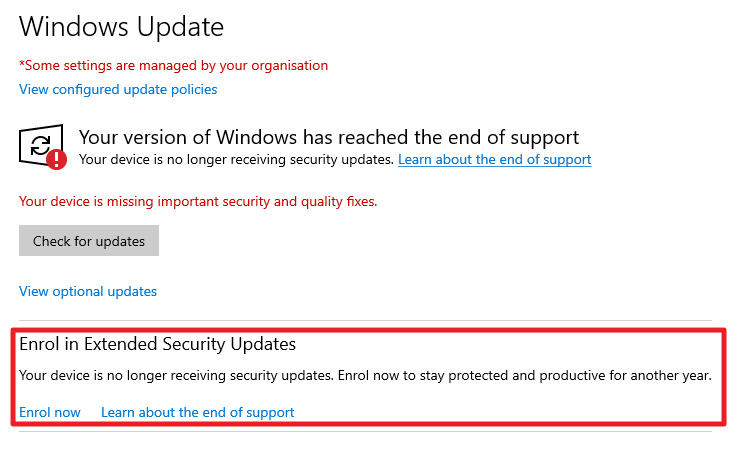
- Click on Enrol Now and follow the prompts on the screen.
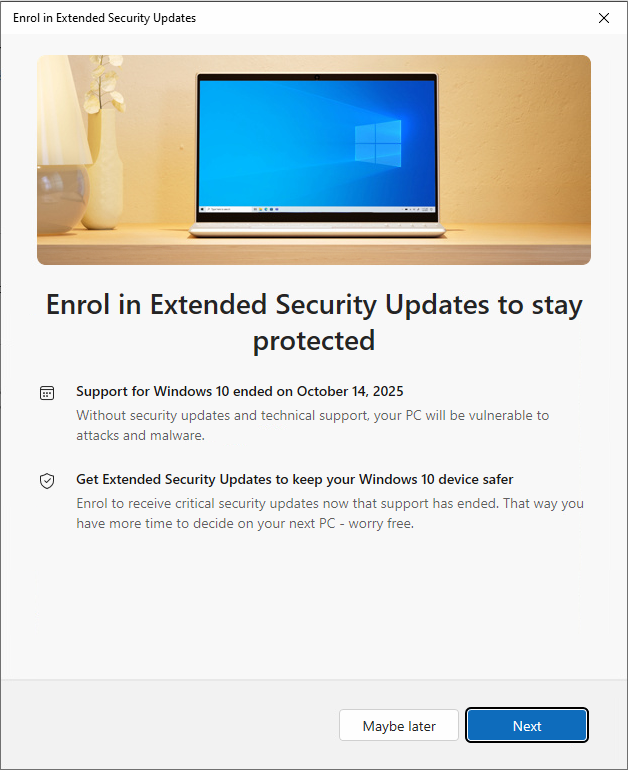
- You may be asked to sign in with your Microsoft Account and agree to back up your settings toyour Microsoft Account.
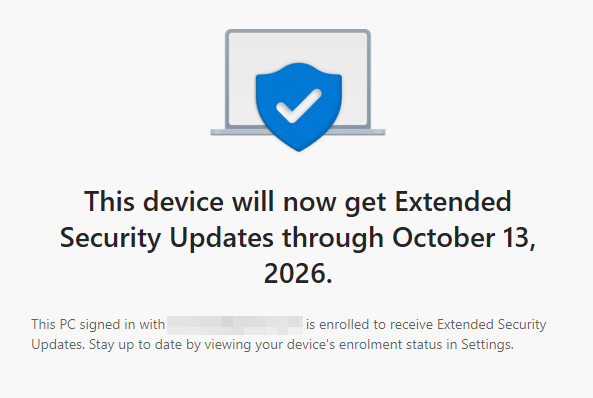
- Once everything is done, you’ll see a confirmation.
Toubleshooting
If you don’t see the option to Enrol in ESU, try the following:
- Make sure all updates are installed and restart your PC.
- Open PowerShell and run:
- cmd /c ClipESUConsumer.exe -evaluateEligibility
- reg.exe query “HKCU\SOFTWARE\Microsoft\Windows NT\CurrentVersion\Windows\ConsumerESU”
- Check the Output of the last command:

- ESUEligibility
- 0: Unknown / Feature is not enabled
- 1: Ineligible
- 2: Eligible
- 3: DeviceEnrolled
- 5: MSAEnrolled
- 8: LoginWithPrimaryAccountToEnroll
- ESUEligibilityResult
- 1: Success
- 3: Non-Consumer edition
- 4: Commercial device
- 5: Non-Admin account
- 6: Child account
- 7: User Region is Embargoed
- 8: Azure device
- 11: Unknown / Feature is not enabled
- ESUEligibility
This should give you a good indication what is the issue. In the above example, the PC is a domain-joined device.
What If It’s a Business Device?
If the Windows 10 device is company-owned, the ESU process is slightly different. Businesses don’t enrol through Windows Update automatically—you need to purchase ESU licenses and activate them using business channels.
Where businesses buy ESU
Businesses can get Windows 10 ESU through:
- Microsoft CSP partners
- Microsoft Volume Licensing partners
- IT managed service providers
Managed environments (Intune, AD, etc.)
If devices are enrolled to Intune, Microsoft Endpoint Manager, or on-prem Active Directory, ESU keys can be deployed centrally using existing management tools. IT can push activation scripts remotely, so users don’t have to do anything locally.
Unmanaged environments
If the device isn’t centrally managed (for example, a standalone work PC), ESU activation can be done locally using slmgr.vbs and the ESU key purchased by the business. Once activated, Windows Update supplies the security patches automatically.
Need Help? Local IT Support in Oxfordshire Is Available
If you’re based in Oxford, Bicester, Abingdon, Kidlington, Witney, Banbury, Carterton, or anywhere in Oxfordshire and you need assistance:
- Checking eligibility
- Migrating from a local account
- Enrolling in ESU
- Upgrading to Windows 11
- Choosing whether to repair or replace your PC
Your local Oxfordshire IT support specialist can walk you through the process or handle it for you.
Windows 10
Oxford, Oxfordshire