

Affected Users: Multiple businesses across Oxfordshire, Buckinghamshire and beyond are experiencing this frustrating Outlook Classic bug following recent Microsoft Office updates. If your email body freezes when trying to add bullet points to stationery templates, you’re not alone.
The Problem: Email Body Becomes Unresponsive
IT support teams in Oxford and throughout Oxfordshire have been dealing with an increasing number of calls about a specific Outlook Classic issue. Users report that when composing emails using stationery (particularly templates formatted with tables), attempting to insert bullet points causes the email body window to completely freeze.
Outlook itself remains responsive. You can still change the subject line, modify recipients in the To field, and access menus. It’s only the actual email body that becomes completely unresponsive, forcing users to close the email window and lose their work.
Symptoms You’ll Recognise
- Email body freezes when attempting to create bullet points or numbered lists
- The issue only occurs when using email stationery templates
- The problem appears across multiple computers in your organisation
- The freeze happens specifically with stationery that uses table formatting
- Outlook works perfectly fine when not using stationery
This has been particularly problematic for businesses in Oxford, Abingdon, Witney, and throughout Oxfordshire who rely on branded email stationery for professional communications with clients and partners.
The Root Cause: Recent Microsoft Office Updates
This issue stems from the Windows update KB5074109 released in January 2026. The update introduced several stability problems with Outlook Classic, particularly affecting how the application handles formatted content. When Outlook tries to apply list formatting styles on top of table-based stationery templates, it creates a conflict that causes the editor to hang.
✅ The Solution: Simple Toggle Fix
After extensive troubleshooting with affected businesses in Oxford and the surrounding area, we’ve identified a simple workaround that doesn’t require uninstalling updates or abandoning your branded stationery.
Quick Fix for Individual Users
- Open Outlook Classic
- Click File → Options
- Select Mail from the left sidebar
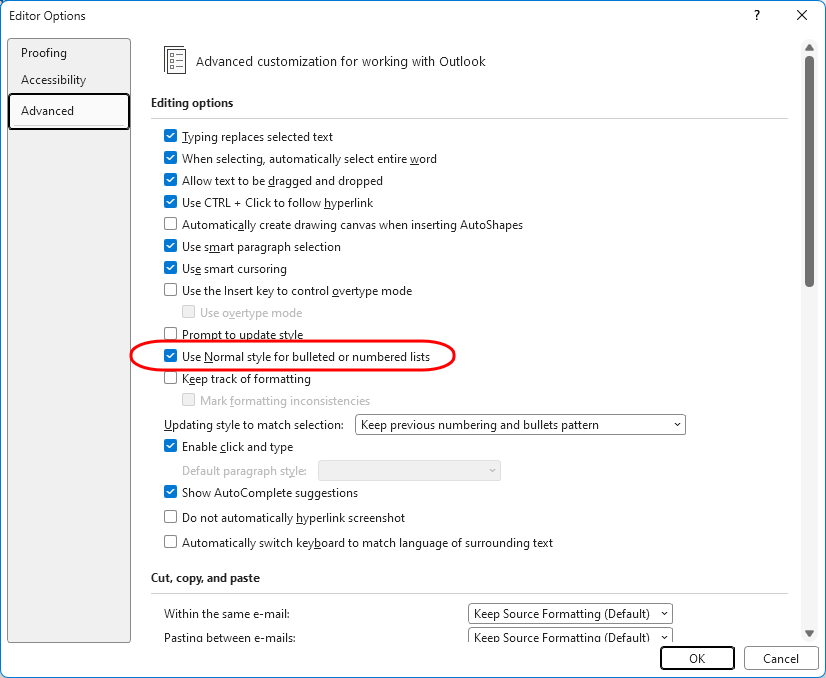
- Click the Editor Options button
- Go to the Advanced tab
- Under the “Editing options” section
- Check the box for “Use Normal style for bulleted or numbered lists”
- Click OK on all dialogue boxes to save
That’s it! Your Outlook email editor should now work smoothly with stationery and bullet points.
Enterprise IT Solution: Deploy the Fix via Registry or Group Policy
For IT administrators managing multiple computers across Oxford, Oxfordshire, or beyond, manually configuring each machine isn’t practical. Fortunately, this setting can be deployed centrally using Group Policy or registry modifications.
Registry Key Details
The setting is controlled by this registry value:
Value Name: NormalStyleForList
Type: REG_DWORD
Data: 1 (enabled) / 0 (disabled)
Note: Replace “16.0” with your Office version number (15.0 for Office 2013, 14.0 for Office 2010, etc.)
Deployment Method 1: Group Policy Preferences
- Open Group Policy Management Console
- Navigate to User Configuration → Preferences → Windows Settings → Registry
- Right-click and select New → Registry Item
- Configure as follows:
- Action: Update
- Hive: HKEY_CURRENT_USER
- Key Path:
Software\Microsoft\Office\16.0\Word\Options\WordMail - Value name: NormalStyleForList
- Value type: REG_DWORD
- Value data: 1
- Click OK and link the GPO to your organisational units
Why This Fix Works
The issue occurs because Outlook’s email editor (which uses Microsoft Word’s engine) attempts to apply complex list formatting styles on top of table-based stationery templates. The recent Windows update exacerbated a conflict in how these styles interact.
By enabling “Use Normal style for bulleted or numbered lists“, you’re instructing Outlook to use simpler, more compatible list formatting that doesn’t conflict with table-based layouts. This bypasses the style inheritance problem that causes the freeze.
Alternative Workarounds (If the Main Fix Doesn’t Work)
If you’re still experiencing issues after applying the registry fix, consider these alternatives:
1. Temporarily Disable Stationery
If you need immediate relief while rolling out the registry fix across your organisation, users can temporarily compose emails without stationery, then copy/paste into a stationery template afterwards.
2. Avoid using bullet or numbered lists in emails
If you forgot to do that and the Outlook Editor “froze”, you can simply click Undo (CTRL+Z) a couple of times to reverse your change and bring Outlook back to a usable state.
Need IT Support in Oxford or Oxfordshire?
Dealing with frustrating IT issues like this Outlook bug? AGGIA provides expert IT support to businesses throughout Oxford, Abingdon, Witney, Banbury, and across Oxfordshire. We handle everything from quick fixes to complete IT infrastructure management.
Frequently Asked Questions
Does this fix affect normal Outlook functionality?
No. This setting only changes how bullet points and numbered lists are styled. All other Outlook features continue to work normally, and your emails will still look professional.
Will this work with Outlook 365 or only Outlook Classic?
This fix specifically addresses issues in Outlook Classic (the desktop application). The new Outlook for Windows web-based client doesn’t have this issue since it uses a different rendering technology.
Can I apply this fix to Microsoft 365 Business deployments?
Absolutely. The Group Policy and Registry deployment methods work perfectly for Microsoft 365 Apps for Business and Enterprise deployments commonly used by Oxford and Oxfordshire businesses.
Do users need to restart Outlook after applying the fix?
Yes, users should close and reopen Outlook for the registry change to take effect. If deploying via Group Policy, the setting will apply at the next logon.
Is Microsoft planning a permanent fix?
Microsoft has released updates (KB5078127 and KB5078129) intended to address the underlying Windows update issues. However, many users report that this specific stationery/bullet point problem persists even after those patches, making this registry workaround necessary.
Conclusion: Quick Resolution for a Frustrating Problem
This Outlook stationery freezing issue has disrupted productivity for businesses across Oxford, Oxfordshire, and beyond. Fortunately, the fix is straightforward—either through individual user settings or enterprise-wide Group Policy deployment.
By enabling the “Use Normal style for bulleted or numbered lists” option, you can restore full functionality to Outlook’s email composer while continuing to use your branded stationery templates.
For IT administrators managing multiple systems in Oxford, Abingdon, Witney, or throughout Oxfordshire, the registry deployment methods ensure you can roll out this fix efficiently across your entire organisation.
AGGIA provides IT support and solutions to businesses throughout Oxford, Oxfordshire, Buckinghamshire and the surrounding areas. Whether you’re dealing with Microsoft 365 issues, need network support, or require comprehensive IT management, our experienced team is here to help. Contact us to learn more about our services.
February 2026