
If you’ve opened Classic Outlook recently and noticed the Microsoft Teams button now says “Sign In” instead of “Teams Meeting”, you’re not alone. This is a new issue our IT Support team started hearing about from Microsoft 365 users across Oxford, Oxfordshire, and beyond.
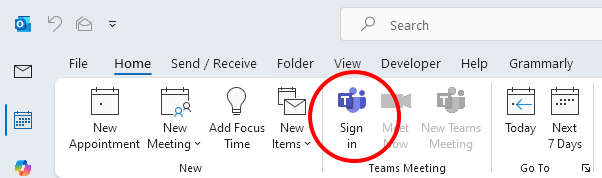
Clicking the “Sign In” button shows the following message:
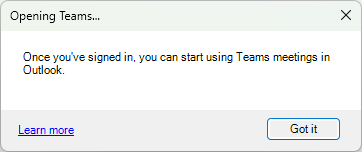
Opening Teams…
Once you’re signed in, you can start using Teams meetings in Outlook.
After clicking “Got it“, one of three things happens:
- Nothing
- MS Teams Work opens (already signed in)
- MS Team Personal opens (already signed in)
What Causes the Teams “Sign In” Button in Outlook?
The root cause is often a corrupted or stale Teams cache, often made worse if you have both a personal Microsoft account and a work Microsoft 365 account on the same machine. The Teams Meeting Add-in loads correctly (which is why the button appears at all), but it can’t match up the right identity, so it prompts you to sign in even though Teams itself is already signed in. Sometimes, clicking the “Sign In” button opens the Personal Microsoft Teams app.
Here are some troubleshooting steps that didn’t help in this particular case, but may be worth trying if the fix below doesn’t work for you:
- Update Microsoft Office to the latest version
- Uninstall Reinstall Microsoft Teams and Microsoft Teams Outlook add-in
- Perform Microsoft Office Quick Repair
- Sign out of Microsoft Teams Personal
- Sign out, then sign back in to Microsoft Teams Work
Step-by-Step Fix
This is what actually resolved the issue for our clients in Oxford.
Step 1: Fully Close Microsoft Teams and Outlook
Don’t just minimise — fully quit both applications.
Step 2: Clear the New Teams Cache
Press Win + R on your keyboard, paste in the following path, and press Enter:
%localappdata%\Packages\MSTeams_8wekyb3d8bbwe\LocalCache\Microsoft\MSTeamsSelect all the contents of this folder and delete them. You are only deleting cached data – nothing important will be lost.
Step 3: Reopen Teams and Sign In
Launch Microsoft Teams and sign in with your work or school account.
Step 4: Open Outlook
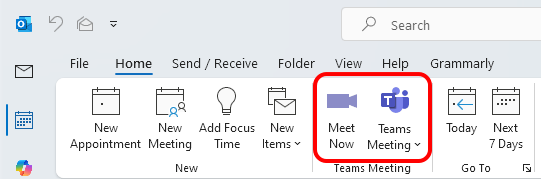
Open Classic Outlook. The Teams button should now display “Teams Meeting” correctly, and you’ll be able to add Teams links to calendar invites as normal.
Need IT Support in Oxford or Oxfordshire?
Issues like this, where a business-critical tool suddenly breaks for no apparent reason, are exactly the kind of thing that costs your team time and productivity. Our IT support team works with businesses across Oxford, Abingdon, Witney, Banbury, Bicester, and the wider Oxfordshire / Buckinghamshire area, providing proactive Microsoft 365 management so problems like this are caught and resolved before they become a headache.
Whether you need day-to-day IT support in Oxford, help managing your Microsoft 365 environment, or a trusted local IT partner for your growing business, we’re here to help.
Get in touch today to find out how our Oxfordshire IT support services can keep your team running smoothly.