
One busy morning, a client in Oxford contacted our IT support team after running into a frustrating printing issue. Every document printed from Foxit PDF Editor was coming out completely blank.
“It prints fine from other applications,” they explained, “but Foxit gives me nothing.”
As a local IT provider supporting businesses across Oxford and Oxfordshire, this wasn’t an unfamiliar problem. We’ve seen similar Foxit PDF printing issues before, particularly with documents that contain interactive forms.
Identifying the Cause
Our technician quickly pinpointed the issue within Foxit PDF Editor’s print settings. The Print What option was set to “Form fields only” rather than “Document.”
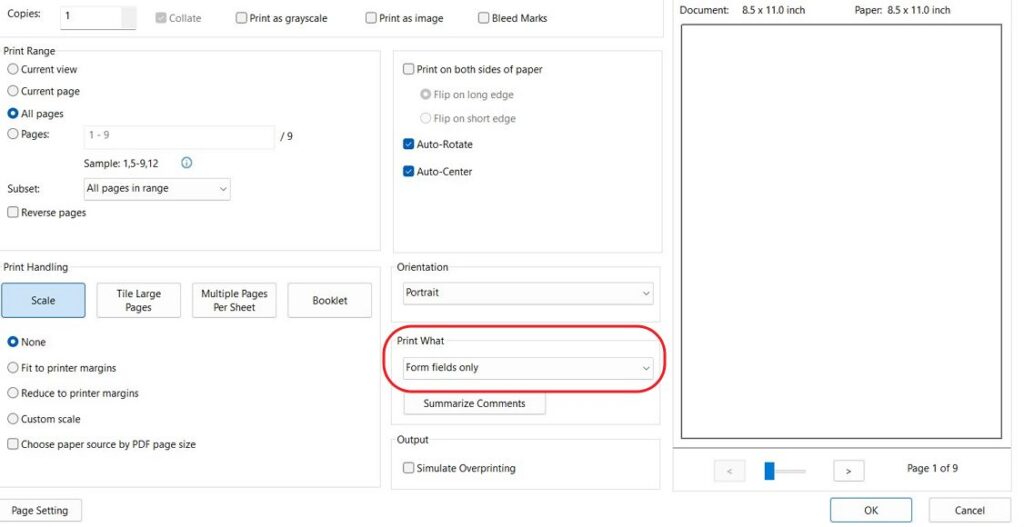
When this setting is enabled, Foxit sends only interactive elements, such as checkboxes and form fields, to the printer, while excluding the rest of the document content. The result is exactly what the client was seeing: blank pages, despite the same PDF printing correctly from applications like Microsoft Edge or Adobe Reader.
A Simple Fix with Immediate Results
The fix was quick and effective. We changed the Print What setting back to Document, reprinted the file, and the output was immediately restored.
Within minutes, printing was working perfectly again, and the client’s Oxford office was back to full productivity.
How to Avoid Foxit Printing Issues
To help prevent similar issues in your Oxford or Oxfordshire workplace:
- Always check that Print What is set to Document before printing from Foxit PDF Editor.
- Keep Foxit up to date to avoid known bugs.
- If problems persist, try the Print as image option within the print dialogue, or contact your local IT support provider for hands-on assistance.
December 2025
Oxford, Oxfordshire