
When Security Features Become Obstacles: A Case Study from Oxfordshire
Recently, a client from Oxford contacted our IT support team with a frustrating issue that many businesses across Oxfordshire encounter: Windows Explorer was blocking previews of PDF and Microsoft Office files with an alarming security warning.
The Problem: File Preview Security Warnings
Our Oxford-based customer reported seeing this warning message whenever they attempted to preview downloaded documents:
“The file you are attempting to preview could harm your computer. If you trust the file and the source you received it from, open it to view its contents.“
This security feature, while well-intentioned, was significantly impacting their team’s productivity. Staff members across their Oxfordshire office were wasting valuable time dealing with these warnings on legitimate business documents.
Understanding the Issue
Windows marks files downloaded from the internet with special metadata called “Zone Information.” This security feature helps protect users from potentially malicious files. However, for businesses handling numerous legitimate downloads daily, it can become a significant bottleneck.
Our IT Support Solutions
We provided our Oxford client with three solutions, tailored to their security requirements and technical comfort level:
Solution 1: Unblock Individual Files
For single files, we showed them how to:
- Right-click on the affected file
- Select Properties
- Check the Unblock box at the bottom of the General tab
- Click Apply and OK
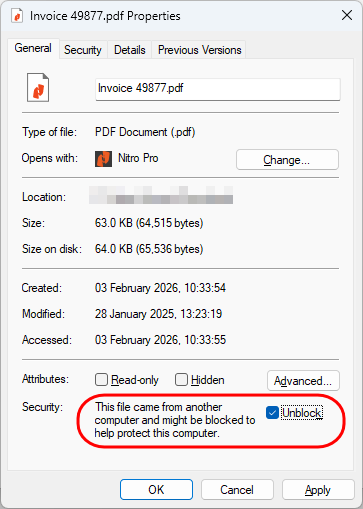
Note: Windows Explorer may need to be restarted to preview newly unblocked files.
Solution 2: Batch Unblock Using PowerShell
For folders containing multiple files, you can use the PowerShell command that can save considerable time:
Get-ChildItem "C:\Downloads" | Unblock-FileThis solution allowed our Oxfordshire client to unblock entire folders of trusted documents efficiently while maintaining security for other downloads.
Solution 3: Disable Zone Information (Lower Security)
For environments with robust perimeter security and controlled download sources, we also explained how to prevent Windows from marking downloaded files as potentially unsafe:
- Open Group Policy Editor (gpedit.msc)
- Navigate to: User Configuration → Administrative Templates → Windows Components → Attachment Manager
- Enable: “Do not preserve zone information in file attachments”
Important: We advised our Oxford client that this approach reduces system-level security and should only be implemented after careful consideration of their security posture.
IT Support Recommendations for Oxford & Oxfordshire Businesses
Based on our experience supporting businesses throughout Oxford and Oxfordshire, we recommend:
- Assess your security needs: Businesses handling sensitive data should maintain stricter security controls.
- Train your team: Ensure staff understand why these warnings appear and when to be cautious.
- Use batch solutions wisely: PowerShell commands are powerful tools that should be used on trusted file sources only.
- Regular security reviews: Even with convenience adjustments, maintain regular security audits.
Need IT Support in Oxford or Oxfordshire?
If your business is experiencing similar issues with Windows security features, file management, or any other IT challenges, our expert team provides comprehensive IT support throughout Oxford and Oxfordshire.
We understand that security and productivity must work together, not against each other. Whether you’re a small business in central Oxford or a larger organisation across Oxfordshire, we deliver practical IT solutions tailored to your specific needs.
Contact us today to discuss how our IT support services can help your Oxford or Oxfordshire business overcome technical obstacles while maintaining robust security standards.